Notepad++ plugin
Settings profiles
Indent step, JSON style, CSV quoting and the path to duckdb.exe — all savable at once as a profile, exportable as JSON, and importable on another machine or by a colleague. That way a whole team works to the same YAML convention without everyone walking through five tabs separately.
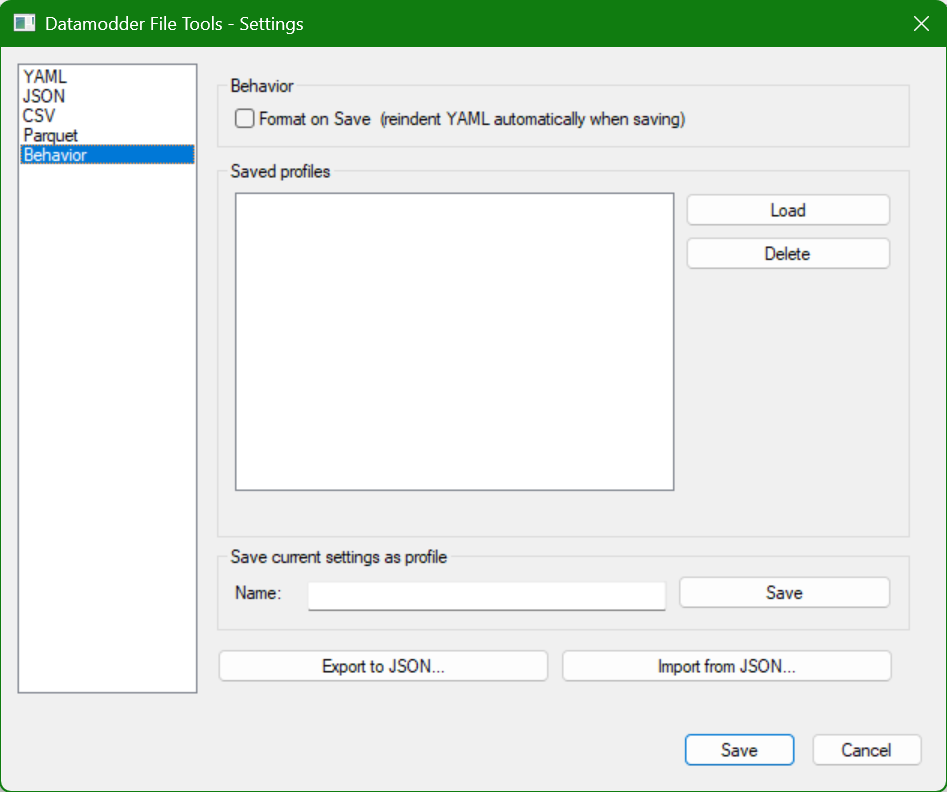
Save, load and delete — all local
On the Behavior tab you give your current configuration a name and click Save; the profile appears in the list and is active again with one click of Load. Profiles are written as a separate JSON file per profile to %appdata%\Notepad++\plugins\config\FileTools_profiles — purely local, no account or cloud sync required.
Sharing with your team via export/import
Export to JSON... writes the selected profile to a file you place wherever you like — next to your Kubernetes manifests or dbt project, say. A colleague uses Import from JSON... to pick up the exact same settings, including the path to duckdb.exe if it lives on a shared network drive.
yaml_team.json
{
  "indent_step": 2,
  "tab_width": 2,
  "max_blank": 1,
  "strip_trailing_ws": true,
  "final_newline": true,
  "json_indent": "2",
  "json_sort_keys": false,
  "csv_quote_mode": "ifneeded",
  "duckdb_path": "",
  "format_on_save": true
}
Frequently asked questions
Is the Format on Save setting also included in the profile?
Yes, format_on_save is captured just like every other setting, so importing a profile can carry that state along with it.
Can I keep multiple profiles side by side for different projects?
Yes, the profile list isn't limited to a single entry — save one profile per project or team, say, and switch between them with Load.